Open URL
Opens a web page in your default browser. Links must start with http:// or https://.
Ctrl Alt Mhttps://mail.google.com
F2https://www.youtube.com/results?search_query=lofi
Keyware Guide
Everything you need to make your keys your own, from your first binding to macros, auto-click and AI Text mode.
01
Keyware is a single program file. There's no installer and nothing to sign up for.
Click Download for Windows and save Keyware.exe (v1.3.5, 20.2 MB) somewhere you'll find it again, such as your Desktop or a Tools folder. Keyware runs on Windows 10 and 11.
Keyware isn't code-signed yet, so Microsoft Defender SmartScreen may show a blue warning the first time you open it. Click More info, then Run anyway. You only need to do this once.
The window opens with a few sample bindings so you can see how things look. Keyware stays off until you switch it on: click the status dot next to the KEYWARE title (green means on), or save a binding, which turns Keyware on automatically.

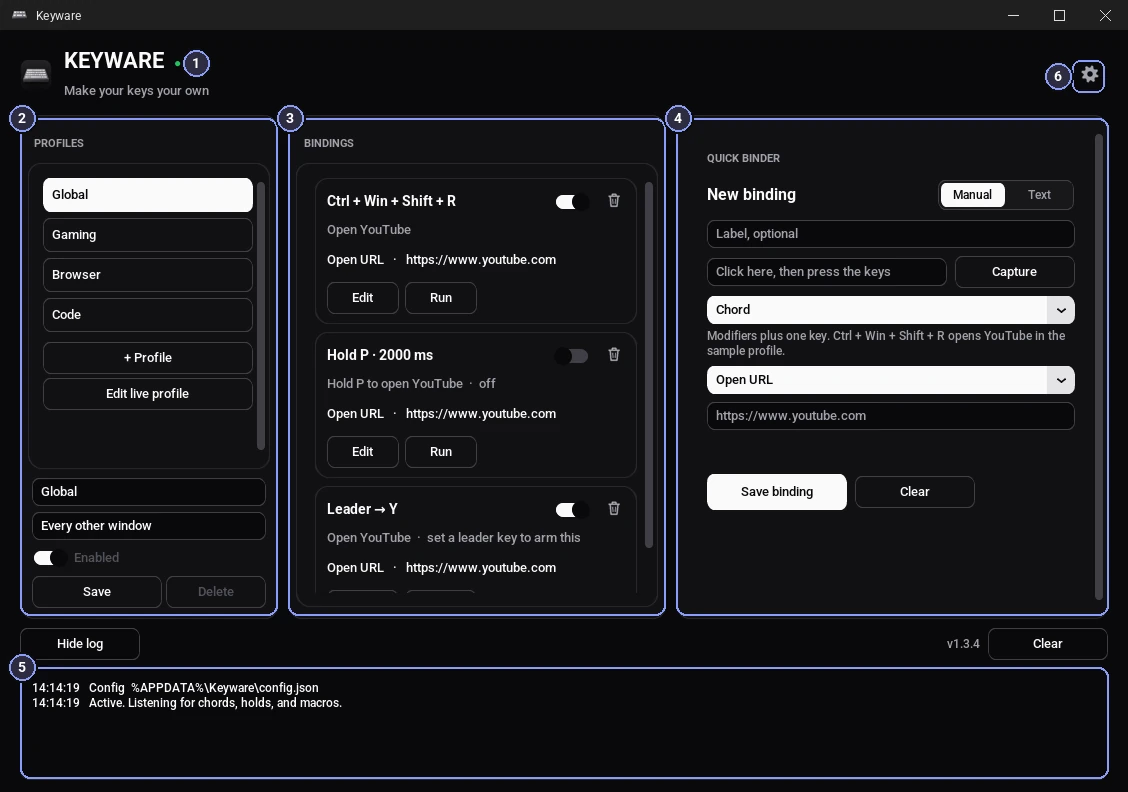
%APPDATA%\Keyware\keyware.log.Closing the window doesn't quit Keyware. It keeps running in the system tray (the area by the clock; click the ^ arrow if you don't see the keyboard icon). Right-click the icon for:
Dimmed icon with a red dot: Keyware is off.
Pause mark: Keyware is paused. Press Ctrl Alt F12 again to resume.
Closing the window (the X) hides Keyware to the tray, and your keys keep working. Only Quit exits it.
Start with Windows is on by default: Keyware starts quietly in the tray when you sign in, without opening the window. Your hotkeys work right away. Turn it off any time in Settings with Start Keyware with Windows. Closing the window keeps Keyware running in the tray; Quit in the tray fully closes it.
02
Every binding has a trigger. Pick one in the Quick binder's trigger dropdown.
| Trigger | How it works | Example |
|---|---|---|
| Tap | A quick press runs the action. The key itself isn't typed. | F2 opens YouTube |
| Hold | Hold the key for a set time (300 ms to 10 s). A short press still types the key normally, or does a separate Tap action if you pick one. | Hold P 2 s opens Spotify |
| Double-tap | Two taps within 250 ms. A single tap still types the key after a short pause. | F8 F8 starts auto-click |
| Triple-tap | Three taps within 250 ms. | Q Q Q types a sign-off |
| Chord | Modifiers (Ctrl, Alt, Shift, Win) plus one key, pressed together. | Ctrl Win Shift R |
| Leader | Tap the leader key, then this key within 1.5 s. F13 makes a safe leader because it doesn't type anything. | F13 → Y |
Tip. Tap, Hold and multi-tap only apply when no modifier is held, so Ctrl P still prints even if you've bound Hold P. Turn on Audio ticks at hold tiers in Settings to hear when a hold has lasted long enough.
Pick the Hold trigger, choose what holding does, then pick what a quick tap does under Tap. The tap can type the key as normal, do nothing, send another key or shortcut, open a URL or app, or type text.
| Key | Tap | Hold |
|---|---|---|
| Caps Lock | Esc | Ctrl while held |
| F9 | Open a website | Open Spotify |
| Copilot | Open Cursor | Ctrl while held |
In Text mode you can just say it: “tap caps lock for escape, hold it for ctrl”.
Many new laptops have a Copilot key where Right Ctrl used to be. Inside, it presses Win Shift F23 all at once, which is why most remappers can't bind it on its own. Keyware recognises that burst as one key called Copilot key:
Built into Windows. If you only want it to open Search, Copilot or one app, you don't need Keyware: go to Settings › Bluetooth & devices › Keyboard › Customize Copilot key. Newer Windows 11 updates also offer Right Ctrl and the Context menu key there. Set it back to the default if you'd rather Keyware handle the key, because Windows' choice runs first.
Good to know: a few keyboards send the Copilot key differently, and it may not be recognised there. Keyware can't see it in windows running as administrator, and if the binding is off or paused the key does what Windows normally does.
Bind Caps Lock like any other key: tap for Esc and hold for Ctrl, open an app, or choose Do nothing to turn it off. While it's bound, pressing it doesn't switch on capitals, and if the Caps Lock light was on when you bound it, Keyware turns it off once. Shift Caps Lock still toggles capitals when you need them.
Macropads and stream decks are great with Keyware because their buttons can send keys no normal keyboard has, so they never clash with your typing.
| App | Example button bindings |
|---|---|
| OBS | F13 start or stop recording, F14 switch scene |
| Photoshop | F13 brush, F14 undo, hold F15 for the hand tool |
| Premiere Pro | F13 razor, F14 ripple delete, F15 export |
| Figma | F13 frame, F14 component |
| Blender | F13 render, F14 toggle edit mode |
| Cursor or VS Code | F13 command palette, F14 run, F15 terminal |
| Slack, Word, Excel | F13 type a sign-off, F14 paste as plain text |
Stream deck apps that can send a hotkey work the same way: set the button to send F13 to F24 and bind it in Keyware. Text mode knows these apps too: “F13 in OBS starts recording”.
03 · Organize your keys
A profile is a group of bindings for one part of your day: Gaming, School, Coding, whatever you need. The same key can do something different in each one, and Keyware switches between them on its own when you change windows.
javaw.exe, minecraft.exe); add your own games' .exe names. Called “Minecraft” in earlier versions. It's renamed to Gaming automatically when you update.Code.exe).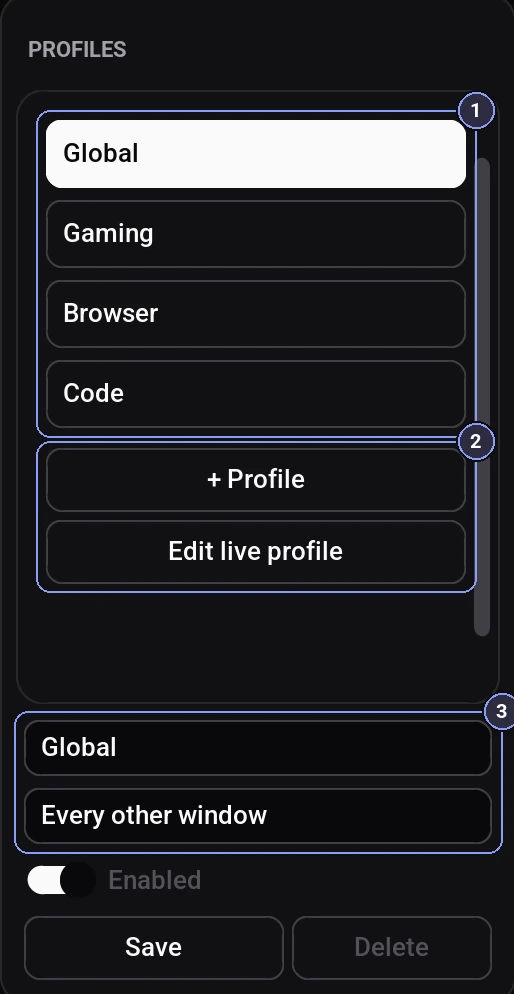
Keyware checks the window in front about twice a second. App profiles add to Global, so your everyday shortcuts keep working. If an app profile uses the same trigger as a Global binding, the app's version wins while that app is in front, and Keyware shows a short note when you save.
WINWORD.EXE, ONENOTE.EXE or Teams.exe. (Task Manager → Details shows a program's exact name.)Turn a whole profile off with its Enabled switch, for example during exams or a tournament, without deleting anything.
04
Manual is the Quick binder's default view. You choose every field yourself.
Ctrl + Shift + R.To change a binding later, press Edit on its card; to try it without pressing the keys, press Run.
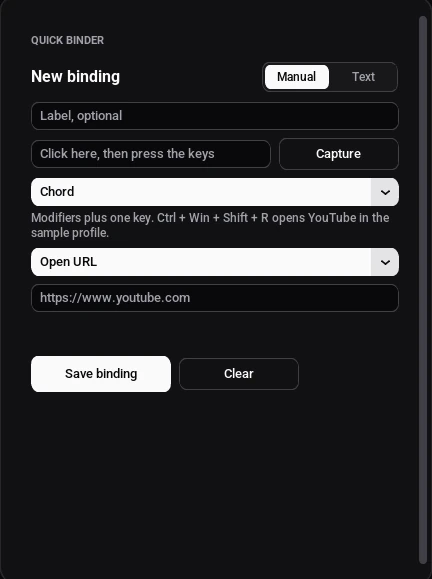
Six things a key can do. Each card shows a real binding you can copy.
Opens a web page in your default browser. Links must start with http:// or https://.
Starts a program. Pick the .exe or paste its path. Command-line arguments and scripts aren't allowed, by design.
Types a snippet for you: an email address, a signature, a reply you send a lot. Multi-line text works too.
Sends a different key or combination. Great for awkward shortcuts or keys your keyboard doesn't have.
A list of steps that run in order: keys, text, mouse clicks (left, right or middle) and waits in milliseconds. Waits are exact; Keyware adds a tiny natural delay between key presses. Press the panic stop to cancel a running macro between steps.
Clicks for you with the left, right or middle button at 1 to 50 clicks per second (10 by default). Choose Hold to click only while the key is held, or Toggle to press once to start and again to stop. You can also set a time limit (up to an hour) so it never runs forever.
05
Don't want to fill in fields? Switch the Quick binder from Manual to Text and describe what you want in plain words.
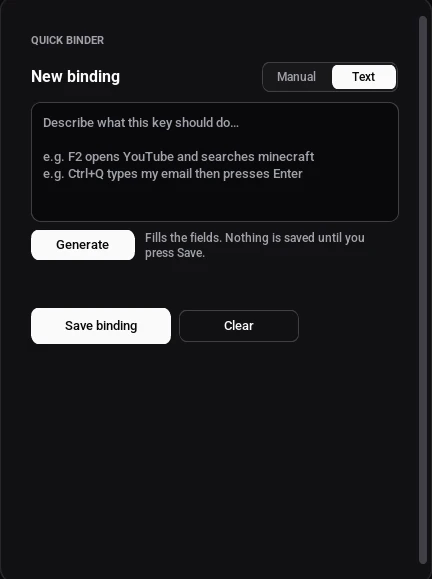
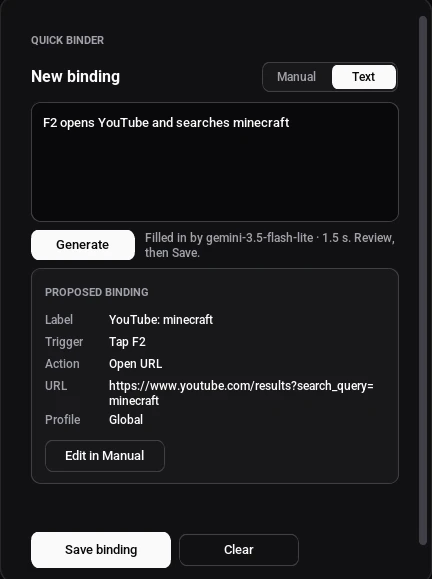
You can ask for up to 8 bindings in one go. Keyware proposes each one separately so you can review them all before saving.
“F9 opens YouTube, F10 types my email, and F8 auto-clicks 15 times a second while I hold it”
Text mode only makes key bindings. If you type something unrelated, like “write me a poem” or “what's the weather”, you'll see:
That doesn't look like a key binding. Describe what you want your keys to do, like “F9 opens YouTube”.
For your safety it also refuses shell commands and scripts (cmd, PowerShell, .bat…), links that aren't http/https, typing into the Run box, apps with command-line arguments, and the panic chord. If the trigger is already used, you get the normal conflict message.
Text mode works out of the box with Keyware's free AI. To keep it free for everyone there's a daily limit of 20 requests per PC, reset every day. If you reach it, Keyware says “Daily AI limit reached, try tomorrow or add your own free key” and offers a button to add one. Manual mode is never limited.
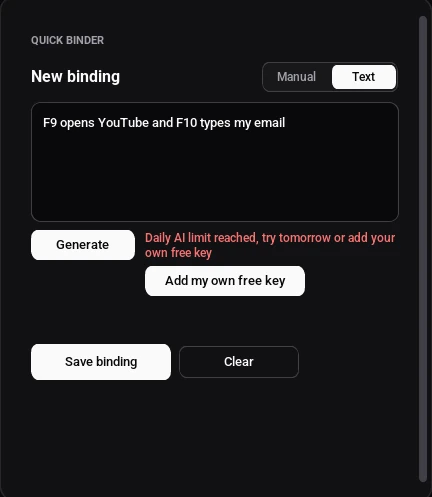
With your own free key, Text mode talks to the AI directly and Keyware's daily limit doesn't apply. Your key is stored encrypted on your PC with Windows (DPAPI), never in plain text, and it's only ever sent to the AI provider you got it from.
AIza.gsk_. Paste, Save and Test it the same way.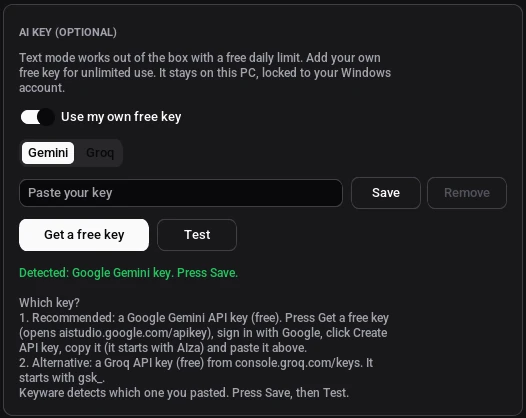
Keyware detects which kind of key you pasted and tells you straight away if it doesn't look like a Gemini or Groq key. To go back to Keyware's free AI, turn Use my own free key off.
Privacy. Text mode is the only part of Keyware that goes online for AI. It sends just the sentence you typed (plus a short summary of your existing triggers and profile names) to an AI model so it can draft the binding (through Keyware's server, or straight to Google or Groq if you use your own key). Your keystrokes, bindings and settings never leave your PC. See the privacy statement.
06
One trigger can only do one thing. If you try to save a binding whose trigger is already used in the same profile, Keyware stops and tells you which binding has it:
F2 is already used by “Open YouTube” (Tap F2). One trigger can only do one thing. Replace it, or pick another trigger.
ReplacePress Replace to swap the old binding for the new one, or choose a different key. Keyware also catches subtler overlaps: a Tap, a Hold and a Double-tap on the same key count as the same key. The exception is Holds of different lengths, which work as tiers (for example hold P 800 ms for one thing and 2 s for another). Using the same trigger in an app profile and in Global is allowed: the app's version wins while that app is in front.
Every binding card has a trash icon. Click it and the binding is removed right away, no confirmation dialog. A small bar appears at the bottom of the window for 5 seconds:
Press Undo and the binding comes back exactly where it was. To keep a binding but stop it firing, flip its switch off instead.
07
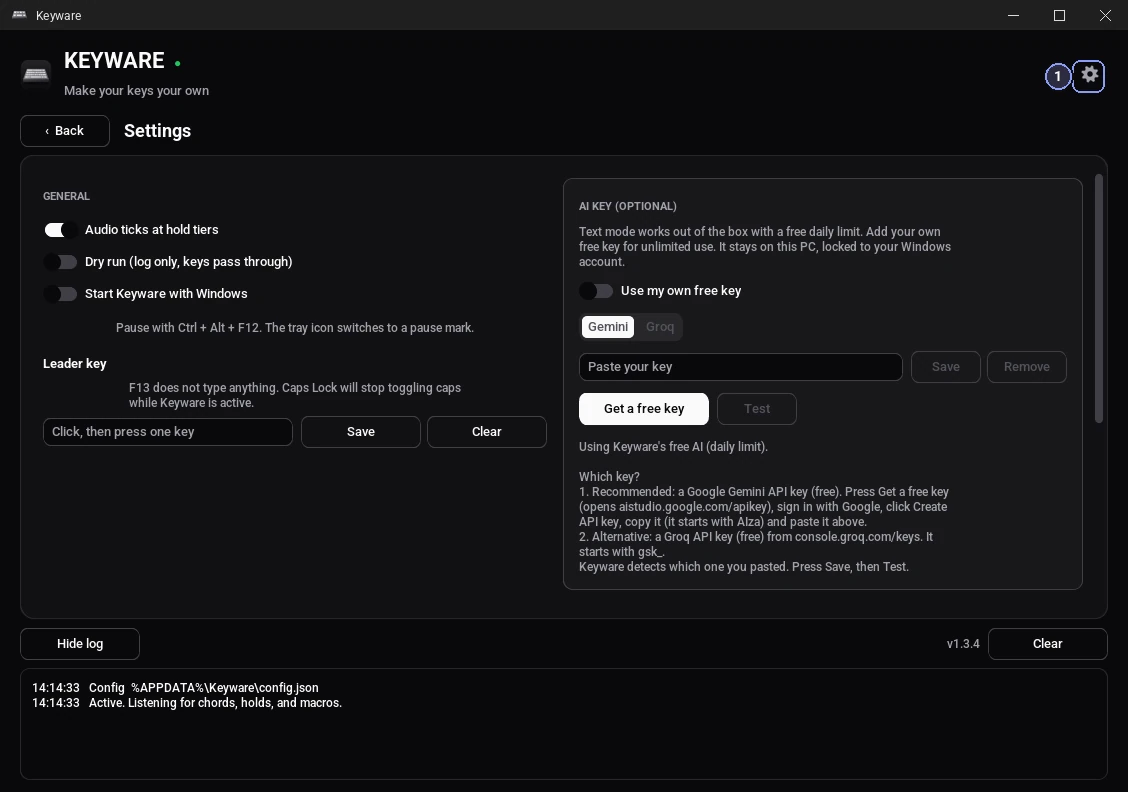
Stops all remaps instantly and lets every key through. The tray icon shows a pause mark. Press the same keys to resume. Perfect for a quick chat in a game.
The emergency brake. Drops Keyware's keyboard hook, releases any held keys, cancels a running macro and stops auto-click. Keyware then pauses until you turn it back on from the window or tray.
Test without consequences: Keyware writes what would fire to the log, and every key passes through as normal.
08
Ideas to steal. Every example works with Manual mode, or just paste the sentence into Text mode.
In the Gaming profile, so they only work in your game.
Less clicking around, more focus.
In the Code profile for your editor.
console.log()Make a profile for OBS or your editor.
obs64.exe)In Global, so they work everywhere.
09
Yes, completely: no trial, no paid tier, no ads and no account.
Yes, under the MIT license. The app, its tests and this website's code are on GitHub, so anyone can read exactly what Keyware does, build it themselves or suggest a change.
Keyware runs as a normal app without administrator rights. It only acts on keys you've bound; every other key passes straight to Windows. It never injects keys into elevated (admin) windows, and the panic stop Ctrl Alt Shift Esc switches it all off instantly.
Open URL only accepts web links, Open app can't pass command-line arguments, and Text mode refuses shell commands and scripts.
No tracking, no analytics, no ads. Keyware doesn't log what you type: the log only notes which bindings fired. Your bindings and settings live on your PC in %APPDATA%\Keyware\config.json.
The key engine never goes online. Only Text mode connects to the internet for AI, and it sends just the sentence you type into the Text box, plus a short summary of your existing triggers and profile names so the AI avoids clashes.
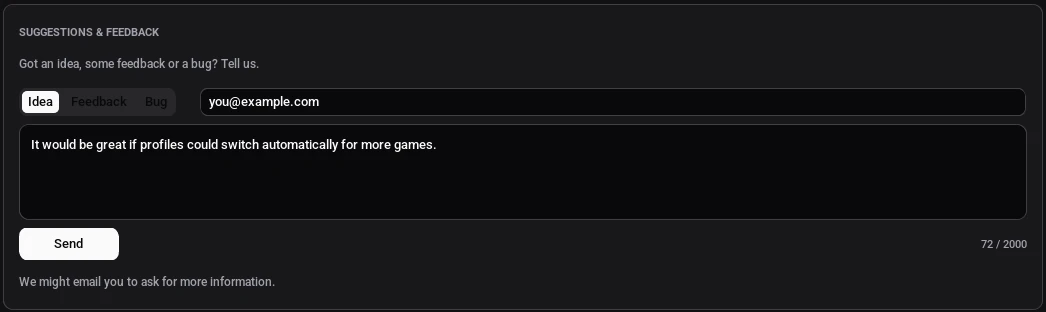
If you send an idea, feedback or a bug report from Settings, Keyware sends your message, the email you enter and the app version, so we can reply if we need more information. Nothing else is attached, and it's never shared or used for marketing.
Read the full privacy statement for exactly what is sent, where it is stored and for how long.
Keyware isn't code-signed yet, and SmartScreen warns about any new app without a signature and many downloads. Click More info → Run anyway.
Yes, in most games. Put game shortcuts in the Gaming profile and add your game's .exe. Games running as administrator won't receive Keyware's keys. Some online games with strict anti-cheat ban macros and auto-clickers, so check the rules first.
No. Unbound keys aren't touched. A Hold or multi-tap key still types normally on a short press, and modifier shortcuts like Ctrl C keep working.
Yes. Copy %APPDATA%\Keyware\config.json to the other PC (same folder) and choose Reload config from the tray.
Keyware.exe.%APPDATA%\Keyware folder to remove your settings.10
.exe name is in the right profile (Task Manager → Details shows the name).AIza, Groq with gsk_) and press Test.config.json.bak and replaced with defaults.